 Sound Booster Max
A Simple Volume Booster Extension for Chrome: One Slider, Up to 600%
 Swasthik Raj
- Updated
- 3 min read
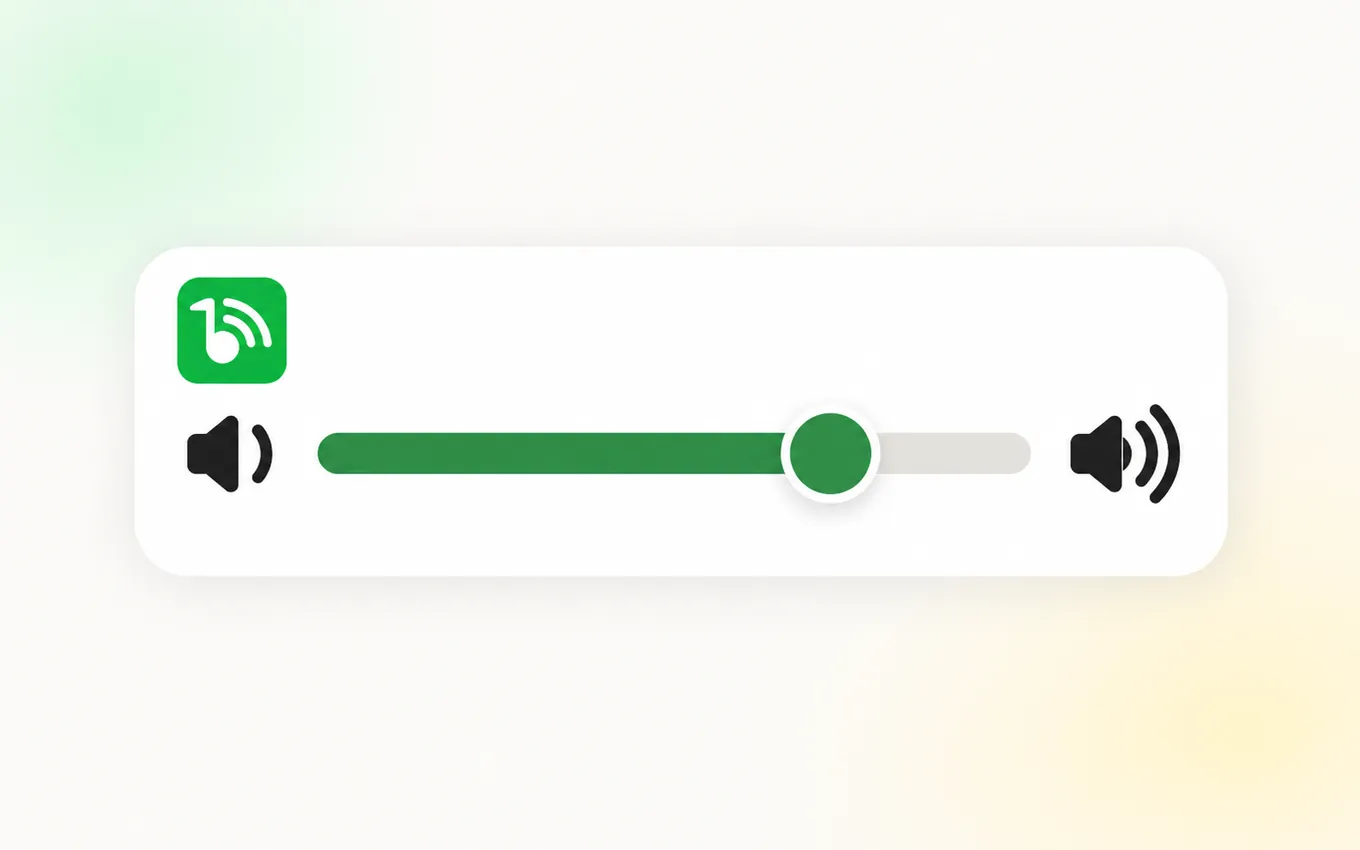
A simple volume booster is a browser extension with one control, a slider, that makes the tab you are listening to louder than Chrome normally allows. Sound Booster Max works this way. Add it to Chrome, click the green icon on a tab that is playing sound, and drag the slider from 100% up to as much as 600%.
If your computer is already at full volume and a video is still too quiet, turning things up further is not possible with the built-in controls. A simple volume booster extension solves that one problem. It does not need an account, a setup screen or a list of settings to learn.
What "simple" should mean in a volume booster
Many audio extensions pile on equalizers, presets and effects (our guide to the types of sound extension sorts them out). Those are useful for some people, but they get in the way if all you want is more volume. A simple volume booster should give you:
- One slider. Left is quieter, right is louder.
- A clear number. 100% is the tab's normal volume, so 200% is twice the level.
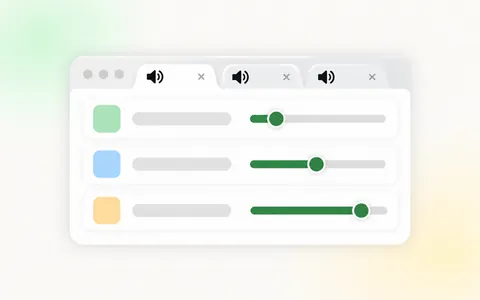
- Per-tab control. Boosting a quiet lecture should not make your music tab louder too. More on per-tab volume control.
- An off switch. One click returns the tab to normal.
- Nothing to sign up for.
The Sound Booster Max volume booster is built around exactly this. The slider runs from 0% to 600% in steps of 10, and the plus and minus buttons nudge it one step at a time.
How to set up Sound Booster Max
- Open the Sound Booster Max listing in Chrome on your computer and select Add to Chrome.
- Select the puzzle-piece Extensions icon at the top right of Chrome and pin Sound Booster Max, so its green icon stays visible.
- Play something in a tab, then click the green icon. A small control window opens for that tab.
- Drag the slider to the right until the sound is comfortable. Keep the control window open while you listen.
The install steps on the home page show each of these with a picture.
How far should you raise the slider?
Start at 150% to 200%. That is enough for most quiet videos and calls. Go higher only if you still cannot hear clearly.
Above 400% the slider shows a "Quality Warning" zone. Nothing breaks there, but audio that was already fairly loud can start to crackle or distort, because you are asking for more level than the signal has room for. If that happens, move the slider back until the sound is clean again. Our guide to getting louder than max without distortion explains why this happens.
What a simple booster does not do
It helps to know the limits before you install anything:
- It works inside Chrome only. Sound from other apps, and your computer's system volume, are not changed. See volume boosters for PC for options outside the browser.
- It runs on desktop Chrome. Chrome on phones does not support extensions.
- It changes level, not tone. There is no equalizer or bass control.
- It cannot repair a bad recording. Hiss and background noise get louder along with the voice.
Simple volume booster for PC, laptop and Chromebook
Because it is a Chrome extension, the same simple booster works wherever desktop Chrome runs: Windows PCs, Macs, Linux machines and Chromebooks. If the quiet sound comes from small laptop speakers, our laptop volume booster guide covers the system settings worth checking first. On a Chromebook, see how to make a Chromebook louder.
Frequently asked questions
Is the simple volume booster free to download?
Yes. Sound Booster Max is free to add from the Chrome Web Store, with no account or subscription.
Does a simple volume booster work on YouTube?
Yes. It boosts audio playing in the tab, so it works on YouTube and most other sites that play sound in the browser. The YouTube volume booster guide has specific tips.
Is it safe to boost volume this much?
For audio, Sound Booster Max does one thing: it raises the level of sound in the tab you use it on. Very loud sound can still be uncomfortable for your ears and hard on small speakers, so raise the slider gradually. Separately, when anonymous usage data is switched on, the extension sends the addresses of pages you visit, with a random ID, for analytics; you can switch that off in its settings. Read is a volume booster extension safe? for the details.