 Sound Booster Max
How to Make a Chromebook Louder Than Max Volume
 Swasthik Raj
- 3 min read
To make a Chromebook louder than its maximum, first set the volume keys and the player to 100% and check the output device in Quick Settings. Then add a volume booster extension such as Sound Booster Max from the Chrome Web Store, click its icon on the tab that is playing and raise the slider above 100%, up to 600%. Chromebooks run desktop Chrome, so the extension works the same as on a PC.
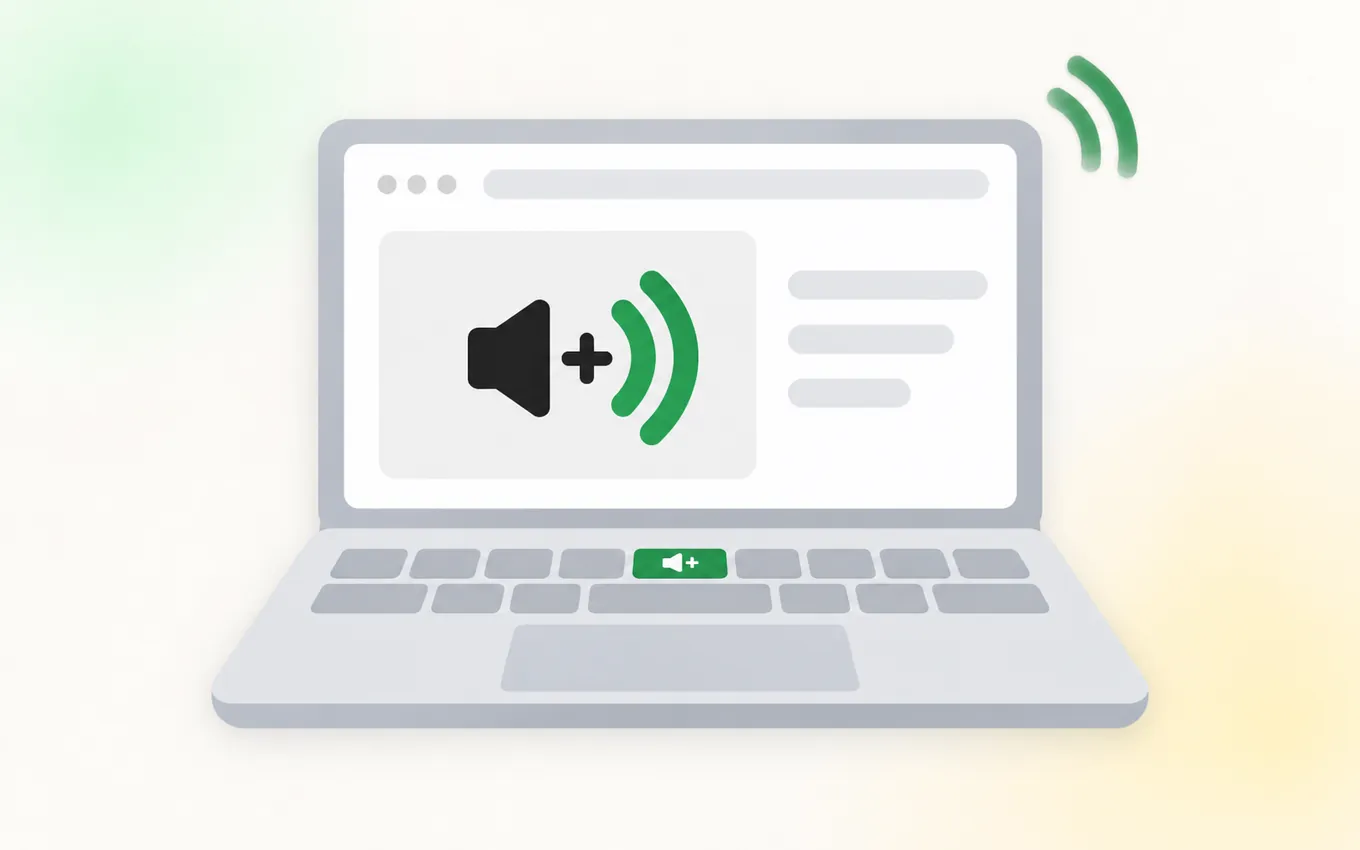
A Chromebook at full volume in a classroom, kitchen or shared room is often still too quiet. The speakers are small and aimed downward on many models, and ChromeOS, like every system, stops at 100%. Because nearly everything on a Chromebook plays in the browser, though, it is one of the easiest devices to boost.
Why is my Chromebook so quiet at max volume?
- Small, downward-facing speakers. On a soft surface like a bed or sofa, they are muffled further.
- Quiet videos. School lectures and recorded lessons are often captured at a low level.
- The wrong output. Sound may be going to a disconnected Bluetooth device or a monitor.
- The player's own volume. The slider inside the video is separate from the Chromebook's volume keys.
Quick checks before you boost
- Press the volume-up key until the bar is full.
- Open Quick Settings (click the time in the corner), select the arrow next to the volume slider and confirm the output is the internal speakers.
- Set the video player's own slider to maximum.
- Put the Chromebook on a hard, flat surface so the speakers are not blocked.
- Restart the Chromebook if sound has suddenly become quieter than usual.
Use a volume booster for Chromebook
- Open the Sound Booster Max listing in Chrome on your Chromebook and select Add to Chrome.
- Click the puzzle-piece Extensions icon and pin Sound Booster Max.
- Play the video, lesson or call in a tab.
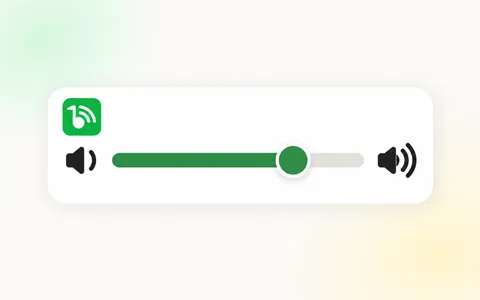
- Click the green icon. A small control window opens for that tab.
- Drag the slider above 100%. Start at 200% and adjust.
The boost applies only to that tab and lasts while the control window is open. For what the extension does and does not do, see a simple volume booster.
How much boost should you use?
Chromebook speakers are small, so they tend to distort sooner than larger laptop speakers (the laptop volume booster guide covers those). A sensible approach:
- Speech and lessons: 200% to 300%.
- Films: around 200%, set for the dialogue.
- Music: 120% to 150% at most.
If you hear buzzing or rattling, the speakers have reached their limit. Lower the slider a step or two. Headphones or a small external speaker will give you more usable volume than any setting.
School and managed Chromebooks
If your Chromebook is managed by a school or workplace, the administrator may control which extensions can be installed. If Add to Chrome is blocked, you will need to ask them to allow it. The quick checks above still apply.
What the booster does not cover
- Android apps on a Chromebook are not browser tabs, so the extension does not change their volume.
- Bluetooth devices have their own volume, which is worth checking separately.
Frequently asked questions
Is there a sound booster for Chromebook?
Yes. Any Chrome volume booster extension works on a Chromebook, because Chromebooks run desktop Chrome. Sound Booster Max is a free sound booster extension that raises a tab up to 600%.
How do I make my Chromebook louder with headphones?
A volume booster extension raises the tab's audio whatever it plays through, so the same steps work with headphones. Be more cautious with the level, since headphones deliver sound directly to your ears. See is a volume booster extension safe?
Will boosting damage Chromebook speakers?
Raising quiet audio to a normal level will not. Avoid running them for long periods with heavy distortion.
Can I boost YouTube on a Chromebook?
Yes. YouTube plays in a Chrome tab on a Chromebook, so a volume booster extension such as Sound Booster Max can raise it above 100%, up to 600%. Open the video, click the extension's green icon and drag the slider, starting at 200%. The YouTube volume booster guide has more.