 Sound Booster Max
MP3 Volume Booster: How to Make an MP3 Louder
 Swasthik Raj
- Updated
- 3 min read
To make an MP3 louder while you listen in Chrome, play it in a browser tab and raise the tab with a volume booster extension such as Sound Booster Max. To permanently increase the volume of the MP3 file itself, open it in an audio editor such as Audacity, apply Normalize or Amplify, and export a new file. A browser extension does not change the file.
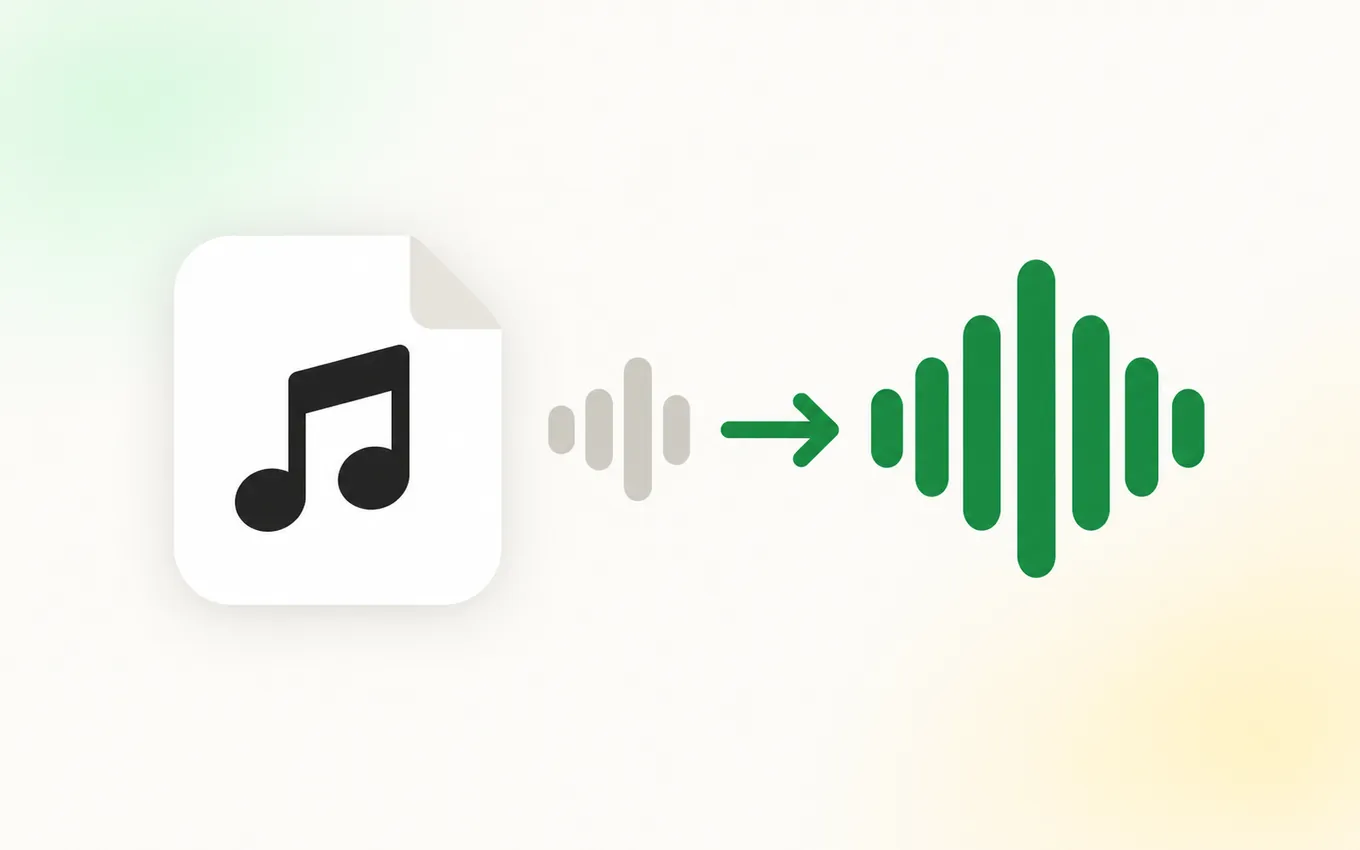
"MP3 volume booster" covers two different needs. Sometimes you just want to hear a quiet file properly right now. Other times you want the file itself to be louder, so it plays at a sensible level on your phone, in the car or in a video you are editing. Pick the method that matches.
Option 1: boost the MP3 while it plays
This is the quick route when the file is only too quiet for listening on your computer.
- Play the MP3 in a Chrome tab. A web player, a cloud drive's preview or a podcast site all count.
- Add Sound Booster Max to Chrome and pin the green icon.
- Click the green icon on the tab that is playing the MP3. A small control window opens.
- Raise the slider above 100% until it is loud enough.
Nothing about the file changes. The boost happens during playback and only in that tab.
To play a file from your own computer, drag it into a Chrome window. If the extension cannot act on a local file tab, open Chrome's Extensions page, select Details for Sound Booster Max and allow access to file URLs.
Option 2: increase the volume of the MP3 file itself
To make the file permanently louder you need an audio editor. Audacity is free and widely used.
- Open the MP3 in the editor.
- Select the whole track.
- Apply Normalize to bring the loudest peak up to just below maximum, or Amplify to add a specific amount of gain.
- Listen to the loudest part and check it does not distort.
- Export as a new MP3, keeping the original as a backup.
Normalize is the safer choice. It raises the file as far as it can go without clipping. If one moment in the file is already at maximum, Normalize has nothing to add, even when the rest sounds quiet.
Exporting saves the audio as a new MP3, which re-encodes it and costs a little quality each time. Make the change once, from the original file.
Which method should you use?
| You want to | Use |
|---|---|
| Hear a quiet file on your computer now | Browser boost |
| Make a file louder on every device | Audio editor |
| Fix a whole folder of files | Audio editor with batch processing |
| Boost a podcast or song on a website | Browser boost |
For music on a streaming service rather than a file, see how to make Spotify louder.
Why very quiet MP3s are hard to fix
An MP3 that was recorded far too quietly has a lot of headroom, so it can be raised a long way. But the background noise in the recording rises by the same amount. If a file hisses after boosting, lower the level slightly. No booster can separate the voice from noise that was recorded with it.
Avoiding distortion
Whichever method you use, the limit is the same. Digital audio has a maximum level, and anything pushed beyond it is clipped, which sounds like crackling. In the browser, lower the slider when you hear it. Sound Booster Max marks levels above 400% as a quality-warning zone. In an editor, undo and apply less gain. Our guide to going louder than max explains why boosted audio distorts.
Frequently asked questions
Can a Chrome extension increase the volume of an MP3 file?
It increases the volume of the MP3 as it plays in the browser. It does not edit or export the file.
Is there a free MP3 volume booster?
For playback in Chrome, the free Sound Booster Max extension boosts an MP3 as it plays. For editing the file itself, free editors such as Audacity do the job.
How much can I increase MP3 volume without losing quality?
As much as the file's headroom allows. Normalizing shows you that limit. Beyond it you trade loudness for distortion.